Share your map
Send anyone a link to your finished map.
You made a map — coloured it, arranged it just how you want — and now it's sitting on your screen where nobody else can see it. Sharing fixes that. It turns your map into a link you can send to anyone. Drop that link in an email, a message or a doc, and whoever clicks it sees your finished map full-screen in their browser. No sign-up, no software to install — they just look.
What you want to do
Let other people see your map
A map that lives only on your screen can't do much. The moment you want to show a colleague where the expensive taxi zones are, or put your work in front of a client, you need a way to hand it over. Sharing gives you exactly one thing to send — a link — and the person on the other end needs nothing but a browser to open it.
We'll use the demo NYC Taxi Zones map, coloured by average fare, as the example. Open its shared link to see exactly what a visitor would see.
The example map is a shared demo, so it's read-only: restyle it all you like — the changes show on your screen but aren't saved. To keep what you make, sign in and use your own copy: your first team comes with a Demos project holding an editable copy of this very map.
Where to start
Open the Share window
Look for the Share button in the toolbar at the top of the editor. Click it and the Share window opens. At the top is a single switch — Anyone with the link can view — and flipping that switch is the whole act of publishing. Turn it on, and the link just below it comes to life, ready to copy.
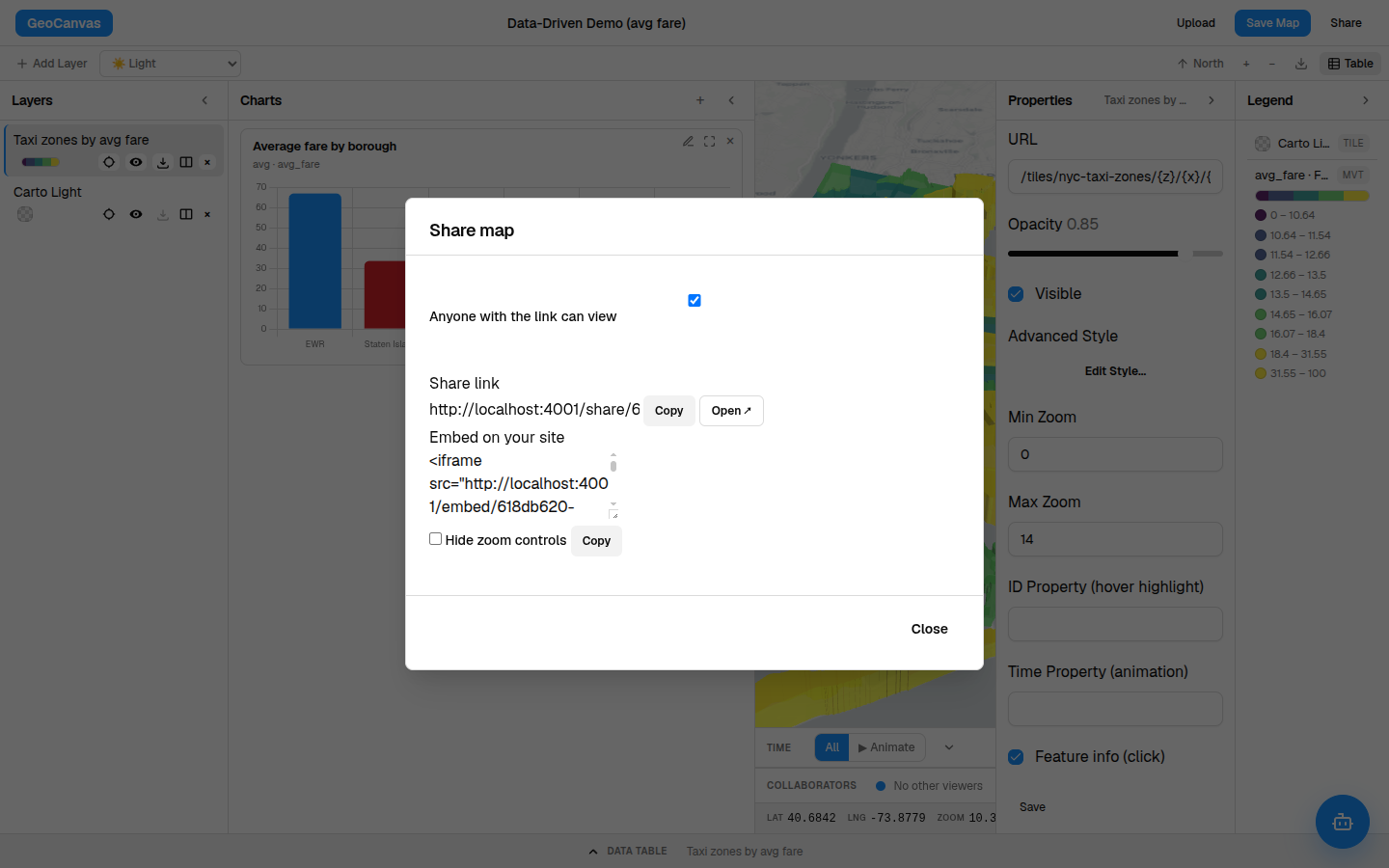
- Click Share. Find Share in the toolbar and click it to open the Share window.
- Save it first if asked. A brand-new map needs to be saved before it can have a link. If the window asks you to save first, do that — then the link appears.
- Turn on the switch. Flip Anyone with the link can view on. Your map is now reachable by its link.
- Copy the link. Click Copy next to the link to put it on your clipboard.
- Send it. Paste the link into an email, a chat or a doc — anywhere the people you want to reach will see it.
What they see
A clean, full-screen map
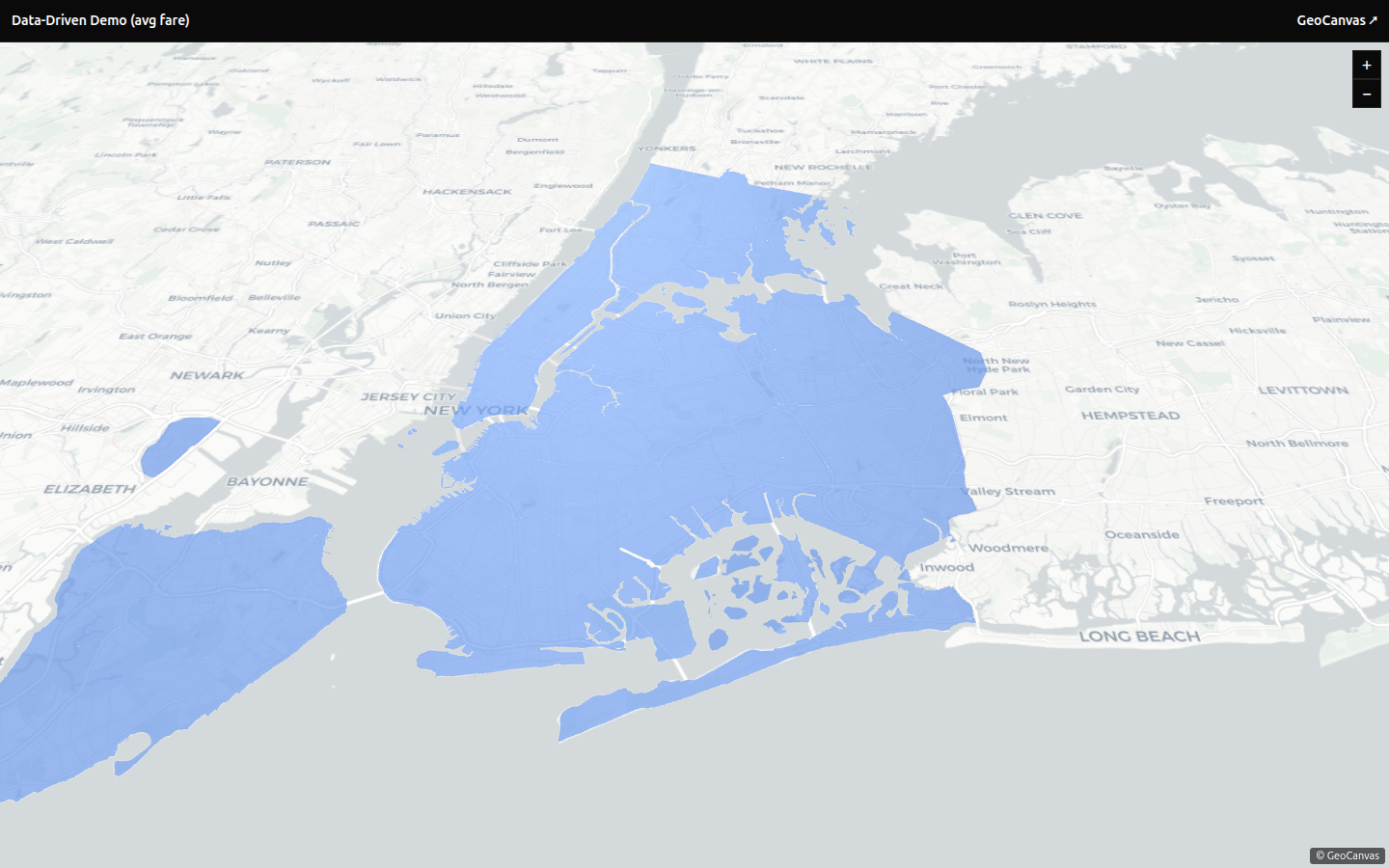
Whoever opens your link lands on a page that's just the map — your colours, your starting view, filling the whole screen. They can zoom in and pan around, but there are no panels, no editing buttons and nothing to sign into. It's the polished, look-only version of your work, with a small GeoCanvas mark tucked in the corner.
Keep in mind
The link is the key
One thing is worth being plain about: the link is the key. Anyone who has it can open your map, and anyone you send it to can pass it along. There's no password and no list of who's allowed — if someone holds the link, they're in.
Only share the link with people you're happy to have see the map. Changed your mind? Open the Share window again and turn the switch back off — the link stops working straight away, for everyone.
That's all there is to publishing a map. If you'd rather have the map appear inside your own website — on a blog post or a report page — see Embed a map; the same Share window hands you a ready-made snippet to copy and paste, no code to write. And if you want to build a map together with other people, editing it side by side as you go, see Work together in real time.