Just ask: GeoChat
Get answers and maps by asking in plain English.
Some days you just want the answer — not a tour of the panels, not a single setting to learn. GeoChat lets you ask your map a question the way you'd ask a colleague: type it in plain English and it replies right there in the chat, or quietly does the thing on the map for you.
GeoChat works with the data already on your map and the datasets you've saved to your catalog — it answers questions about your own data, not the open web.
Why ask
Skip the tools — just ask
Every feature in GeoCanvas has its own panel, and you can absolutely learn them. But you don't have to. If you'd rather not click through menus or write anything, GeoChat is the shortcut: it understands questions about the data on your map and turns plain requests into real actions — colouring a layer, flying somewhere, building a chart. You describe what you want; it works out how.
Where to find it
Open the assistant
Look for the assistant button in the bottom-right corner of the map editor. Click it and a chat window slides open. Type a question or a request, press Enter, and GeoChat answers in the thread — sometimes with a short written reply, sometimes by changing the map in front of you.
A real example
Ask a question, get an answer
Open the live taxi-zones map and ask:
“Which zones have the highest average fares?”
GeoChat replies in plain language with the priciest zones at the top — out-of-the-way corners like Charleston/Tottenville, far from the busy core where most rides are short and cheap. The map stays right beside the answer, so you can see exactly where those zones are.
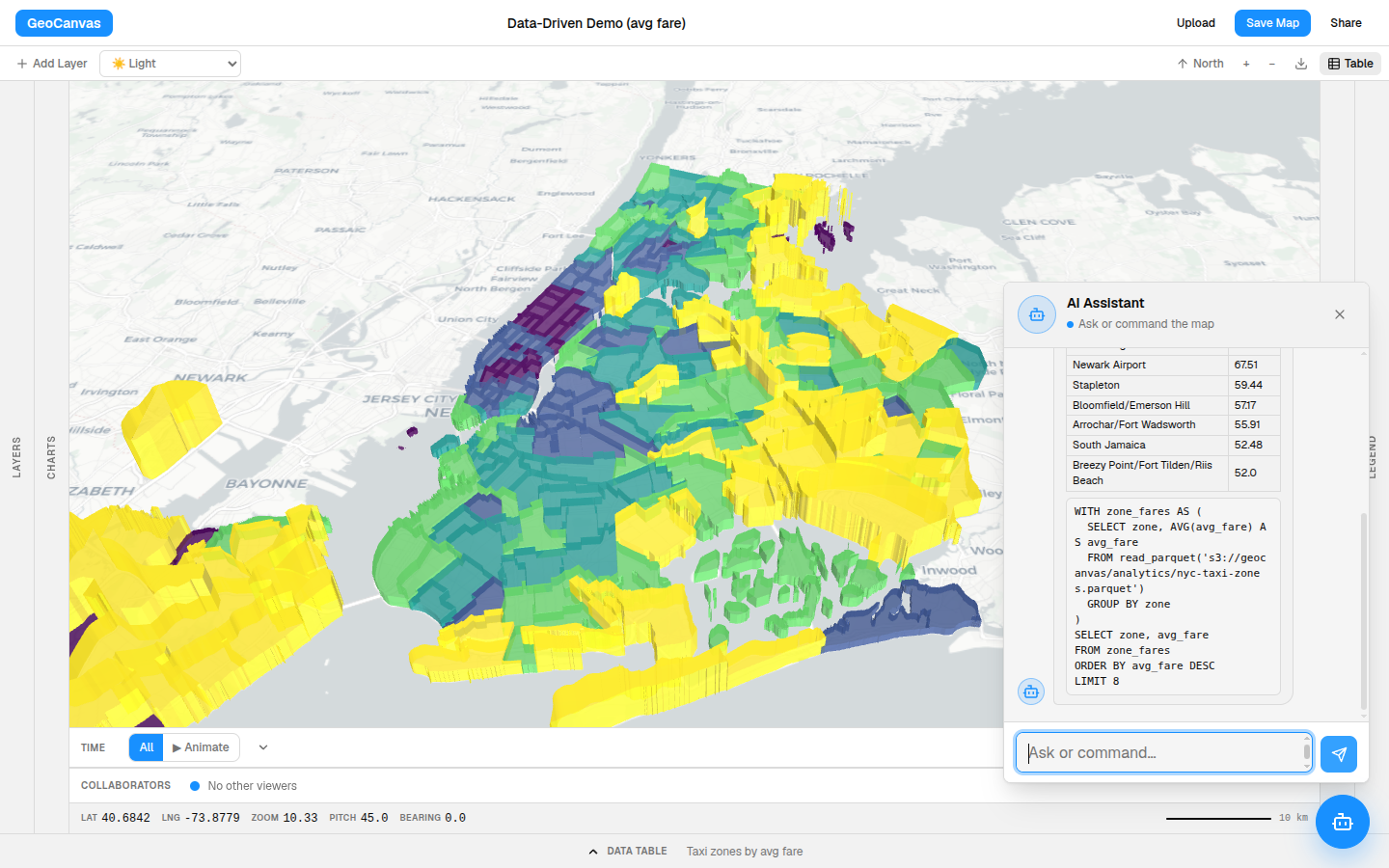
Average fares on this map run from about $12 in Manhattan up to $34 on Staten Island and around $67 by Newark Airport — so asking for the “highest” surfaces the quiet edges of the city, not the busy middle.
What you can ask
Questions — and commands
GeoChat does more than answer. The same chat box drives the editor, so you can ask it to:
- Find or answer something — “which borough is most expensive?” comes back as a clear, written answer.
- Add a dataset — “add the earthquakes layer” pulls one of your saved datasets onto the map.
- Fly somewhere — “take me to Manhattan” glides the view there.
- Colour the map — “colour the zones by average fare” turns a flat layer into a choropleth in one step.
- Keep what it found — after it highlights a set of zones, “save that as a layer” holds onto them as their own layer you can restyle later.
- Draw a chart — “chart the average fare by borough” adds a bar chart; see Charts & data tables.
Keep going
It remembers the conversation
You don't have to say everything at once. GeoChat keeps track of what you just asked, so you can refine in small steps. After the fares question, try:
- “Now just the airport ones” — it narrows the same answer instead of starting over.
- “Why is that one so high?” — it explains using what it already found.
It's a conversation, not a search box. Ask, look, adjust, repeat — the way you'd talk a problem through with someone next to you.
Try it
Answer a question by chatting
- Open GeoChat. Click the assistant button at the bottom-right of the editor.
- Ask. Type “Which zones have the highest average fares?” and press Enter.
- Map it. Follow up with “colour the zones by average fare” to see the pattern on the map.
- Refine. Say “now just the airport ones” to narrow it down.
- Keep it. Add “chart that by borough” or “save that as a layer” to hold onto what you found.
GeoChat is the fastest way into GeoCanvas, but everything it does, you can also do by hand. When you want finer control, open the styling window or the charts panel and take it from there.